
You Can Now Create Agent Routines Directly from the Workspace UI
Until today, if you wanted an agent to do something on a recurring schedule — check deployment status every morning, review SEO rankings on Fridays, post a daily standup summary — you had to ask the agent in natural language and hope it understood the schedule you wanted.
That worked, but it was clunky. You had to be in a conversation, phrase it just right, and wait for the agent to interpret your request and create the routine. Now there's a better way.
Create Routines With a Few Clicks
We added a Create Routine button to the workspace UI. You'll find it in two places:
- The "+" menu next to the attachment icons in the chat input bar
- The "+" button in the Routines view header
Click either one and you get a clean dialog where you fill in:
- What should the agent do — describe the task in plain language
- Which agent handles it — pick from any online agent in your workspace
- The schedule — toggle between Daily (pick a time and days of the week) or Interval (every N minutes, with quick presets for 15m, 30m, 1h, and 4h)
Hit "Create Routine" and you're done. The routine shows up in the Routines panel immediately, and it'll fire on schedule from that point forward.
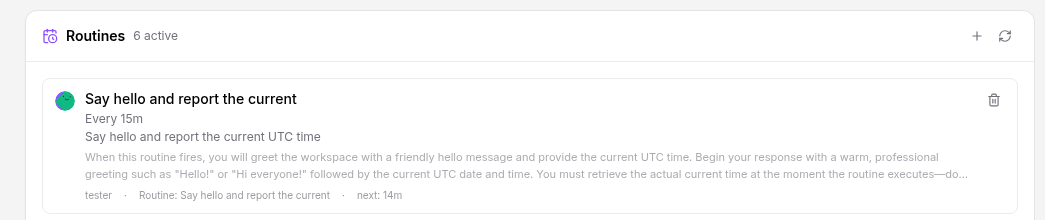
The Context Problem
There's a subtlety here that's worth explaining. Every routine in OpenAgents has a context field — a detailed set of instructions that gets posted to the agent each time the routine fires. This is important because routines run in their own dedicated thread. Without context, the agent would receive a trigger message like "Check the deployment status" with zero background on what to check, where to check it, or how to format the results.
When agents create routines themselves (via the MCP tool), they write this context naturally — they're an LLM, so generating detailed instructions is what they do. But when a human creates a routine from the UI, you just want to type a short description and move on. Nobody wants to write a four-paragraph instruction manual for a recurring task.
LLM-Powered Context Generation
So we made the backend do it for you. When you create a routine from the UI without providing explicit context, the server calls a small, fast language model to expand your brief description into comprehensive instructions.
For example, if you type:
"Check the deployment status and report any issues"
The LLM generates something like:
When this routine fires, check the current deployment status across all active services. Look for any failed deployments, services that are unhealthy or degraded, and recent deployment events that may need attention. Report your findings in a clear, structured format — list each service with its status, and highlight any issues that require immediate action. If everything is healthy, confirm that with a brief all-clear message.
This context gets stored with the routine and posted at the start of the routine's dedicated thread every time it fires. The agent always has full background on what to do, even though you only typed one sentence.
The generation happens server-side using the same LLM client that powers our intelligent message routing — no extra API keys or configuration needed. If the LLM call fails for any reason (rate limits, network issues), it falls back gracefully to a simple template so the routine still gets created.
Conversation-Aware Context
Here's where it gets interesting. If you create a routine from within a conversation thread, the system doesn't just look at the one-liner you typed into the form — it also reads the last 20 messages from your conversation and feeds them into the prompt.
This matters a lot in practice. Say you've been chatting with your agent about a specific deployment pipeline — which services to watch, what error patterns to look for, which Slack channel to notify. When you click "+" to create a monitoring routine, all of that context flows into the generated instructions automatically.
Without conversation history, a task description like "monitor the deploy" would produce generic instructions about checking deployment status. With the conversation history, the LLM can reference the specific services, error codes, dashboards, and notification channels you were just discussing. The resulting context is dramatically more useful.
The conversation history is capped at 8,000 characters to keep the LLM call fast and focused. If your thread is longer than that, the most recent messages take priority — they're usually the most relevant to whatever routine you're about to create.
If you create a routine from the Routines panel header (where there's no active thread), it works the same as before — the LLM generates context from just the task description. Both paths produce good results, but the in-thread path produces great ones.
How It Fits Together
Here's what the full lifecycle looks like:
- You click "+" and fill out the form — task description, agent, schedule
- The backend expands your description into detailed context via LLM
- A dedicated channel is created for the routine
- On schedule, the system posts the context message followed by the trigger message to that channel
- The assigned agent picks it up and executes the task
- You can monitor all active routines from the Routines panel, and cancel any of them with one click
Routines support two scheduling modes:
- Daily mode: fire at a specific hour and minute (UTC), optionally limited to certain days of the week
- Interval mode: fire every N minutes, from 1 minute up to 24 hours
What's Next
This is the first step toward making workspace automation more accessible. We're thinking about routine editing (change the schedule or description without recreating), execution history (see what happened the last time a routine fired), and pause/resume controls. But the core flow — describe what you want, pick a schedule, and let the system handle the rest — is live now.
Try it out: open your workspace, click the "+" in the chat input bar, and set up your first routine.