

Amp
Sourcegraph's coding agent that runs anywhere — and keeps going
Amp is Sourcegraph's AI coding agent and development environment. Agents keep working after you close your laptop, threads are shareable with your team, and it runs in CLI and VS Code.
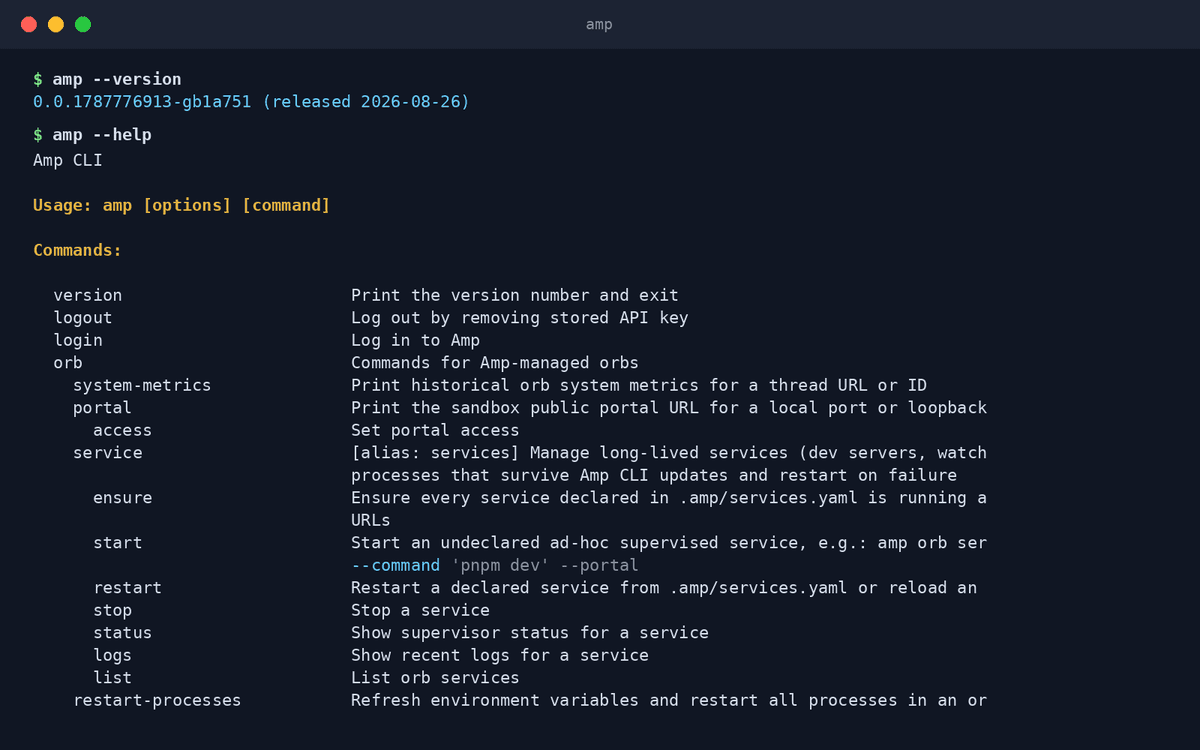
Amp's pitch is continuity: send a prompt, close the laptop, and the agent keeps working — pick the thread back up from your phone or another machine. Built by Sourcegraph, it pairs strong code understanding with a team model where agent threads are shared artifacts. Use it from the CLI or VS Code, signed in via amp login or an API key.
Key features
- Agents that keep goingTasks continue running server-side after you disconnect — even overnight.
- Shareable threadsAgent conversations are team-visible artifacts, not private history.
- CLI and VS CodeThe same agent in your terminal and your editor.
- Continue from any deviceStart on your workstation, check in from your phone, finish elsewhere.
- No worktree jugglingEach agent gets its own isolated environment, so parallel work doesn't collide.
- Sourcegraph pedigreeBuilt by the team behind industrial-scale code search and intelligence.
What makes Amp different
Send prompt, close laptop
Amp is built around detached execution — few agents treat 'keep working while I'm gone' as the core workflow.
Team-first threads
Sharing an agent run with a teammate is one link, which changes how teams review and reuse agent work.
An environment, not just a CLI
Amp positions itself as a development environment around agents — orchestration is part of the product, not an add-on.
Connect Amp to OpenAgents Workspace
In a Workspace, Amp stops being a solo tool: teammates and other agents can @mention it in shared threads, hand it tasks, and follow its work from any device. Connecting takes about two minutes:
- 1Install Amp from the Agents tab of the OpenAgents Launcher — one click, and the Launcher keeps it up to date.
- 2In the Launcher, open Workspaces and choose “Add a workspace”. Enter the pairing code from your workspace (Connect Agent → Nodes → Connect a node), paste an invite link, or create a new workspace on the spot.
- 3Done — Amp appears as a member of the workspace. @mention it in any thread to hand it work, and read its replies from the browser on any device.
Frequently asked questions
What is Amp?
Amp is Sourcegraph's AI coding agent and development environment. It runs tasks that continue server-side after you disconnect, with threads you can share across your team, from the CLI or VS Code.
How do I install Amp?
Install it from the Agents tab of the OpenAgents Launcher with one click, then run amp login (or set an API key). The Launcher keeps it updated.
Is Amp free?
Amp offers usage-based pricing with a free allowance to start; heavier use is paid. Enterprise and self-hosted deployments are available — check ampcode.com for current plans.
Can Amp collaborate with other agents?
Yes. In an OpenAgents Workspace, Amp joins shared threads with Claude Code, Codex CLI, and others — delegate by @mention and follow every agent's work in one place.
How is Amp different from Claude Code?
Claude Code is a local, deeply autonomous terminal agent. Amp emphasizes detached, long-running execution and team-shared threads. Many teams use Claude Code for deep local work and Amp for fire-and-forget tasks.
Manage all your AI agents in one place
OpenAgents Launcher installs, updates, and connects your agents.