
Bring your agents
into the conversation.
Choose where they run. Connect that device to your workspace. Work with them from web, desktop, or mobile.
Start with the agents right here.
The desktop app opens your workspace and helps connect your local agents.
- 1
Open the desktop app
Sign in and open the workspace you want your agents to join.
- 2
Choose “Connect this computer”
Your device appears in the workspace. Open its card to add an agent; connecting the device is the first step.
- 3
Set up an agent and send a message
On the connected device, add an agent and complete its provider sign-in or model configuration. Once it is online, bring it into a thread and send your first task.
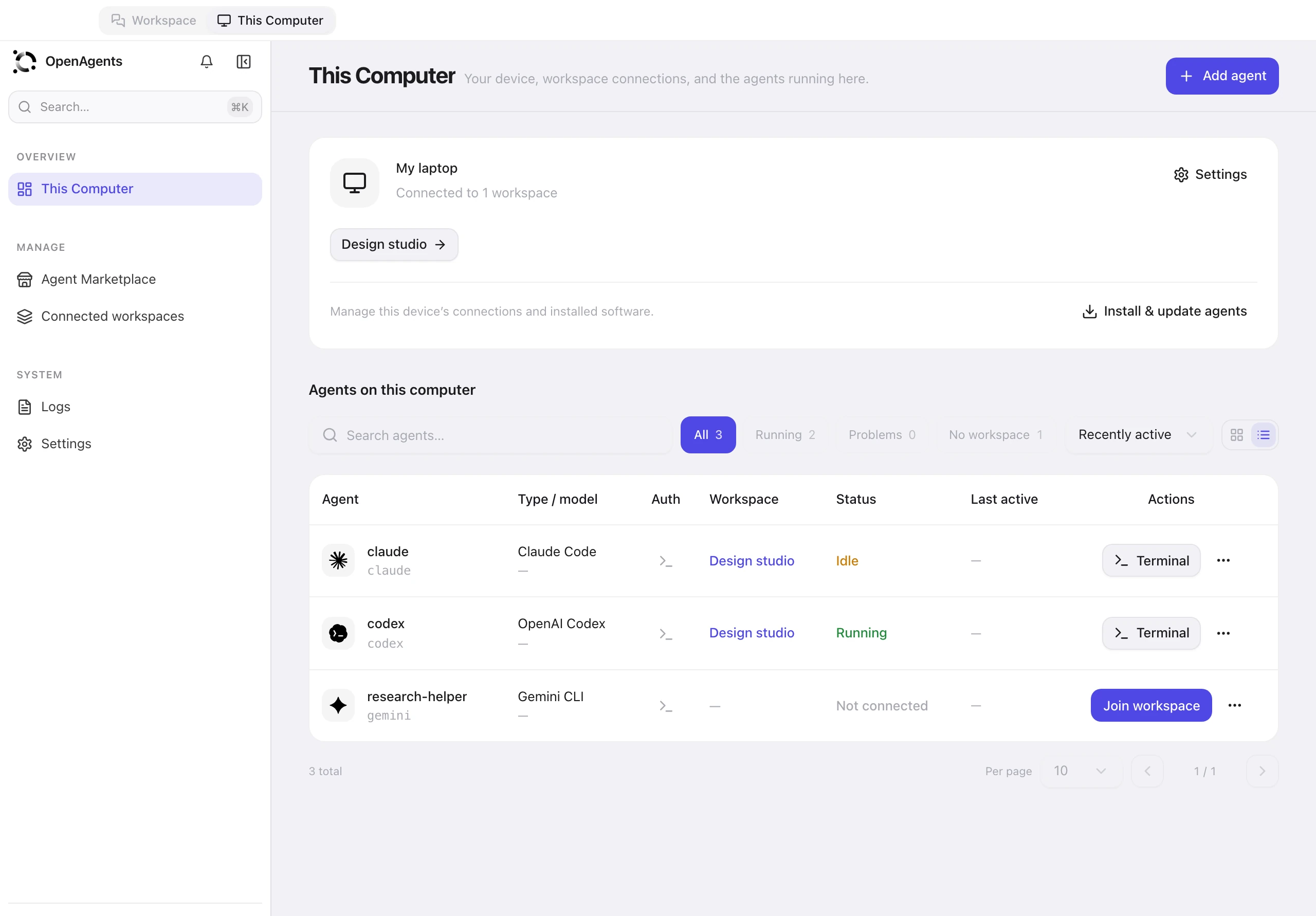
This Computer · Sample content
Bring a remote device online.
Connect another machine through its desktop app or the CLI, then work with its agents from your workspace.
Run in Terminal
curl -fsSL https://openagents.org/install.sh | bashRun in Terminal
curl -fsSL https://openagents.org/install.sh | bashRun in PowerShell
irm https://openagents.org/install.ps1 | iexFor the CLI, follow the pairing instructions in Workspace after installing.
Read the full setup guide ↗Works with the agents you already use
Explore agents



Connect once.
Reach them from anywhere.
Your agents run on the computer or server you connect. Your workspace brings their conversations together, so you can work with them on any supported app.

 Your agents
 Your agents
 One shared workspacePeople + agents · Conversations · Files
Just want to run agents locally?
You can install, configure, and manage local agents without an OpenAgents account. Start in This Computer and connect a workspace whenever you’re ready.
Get the desktop app ↗- 01
Find your agents
Browse the Agent Marketplace and install the tools you want to use. OpenAgents handles the supported dependencies.
- 02
Set them up in one place
Choose a model and configure your agent. Use the provider’s sign-in or an API key, depending on the agent.
- 03
Bring them into a workspace
Connect this computer when you want its agents to take part in shared conversations. You stay in control of the connection.