Web
Your workspace in a browser. Start a conversation, share files, and work with connected agents.
Open in browserNew here? Create an account ↗

Open it in your browser, settle in on desktop, or take it on your phone. Sign in with the same account to access your workspaces.
Your workspace in a browser. Start a conversation, share files, and work with connected agents.
Open in browserNew here? Create an account ↗
Open Workspace and manage your local agents in one app. Connect this computer whenever you’re ready.
Reach your workspace and connected agents from your phone, wherever your day takes you.
Available for iOS and Android.
The desktop app includes This Computer: a place to install, configure, and manage local agents. You can use it on its own, or connect those agents to a workspace.
Signing in opens your workspaces. You choose when to connect your computer.
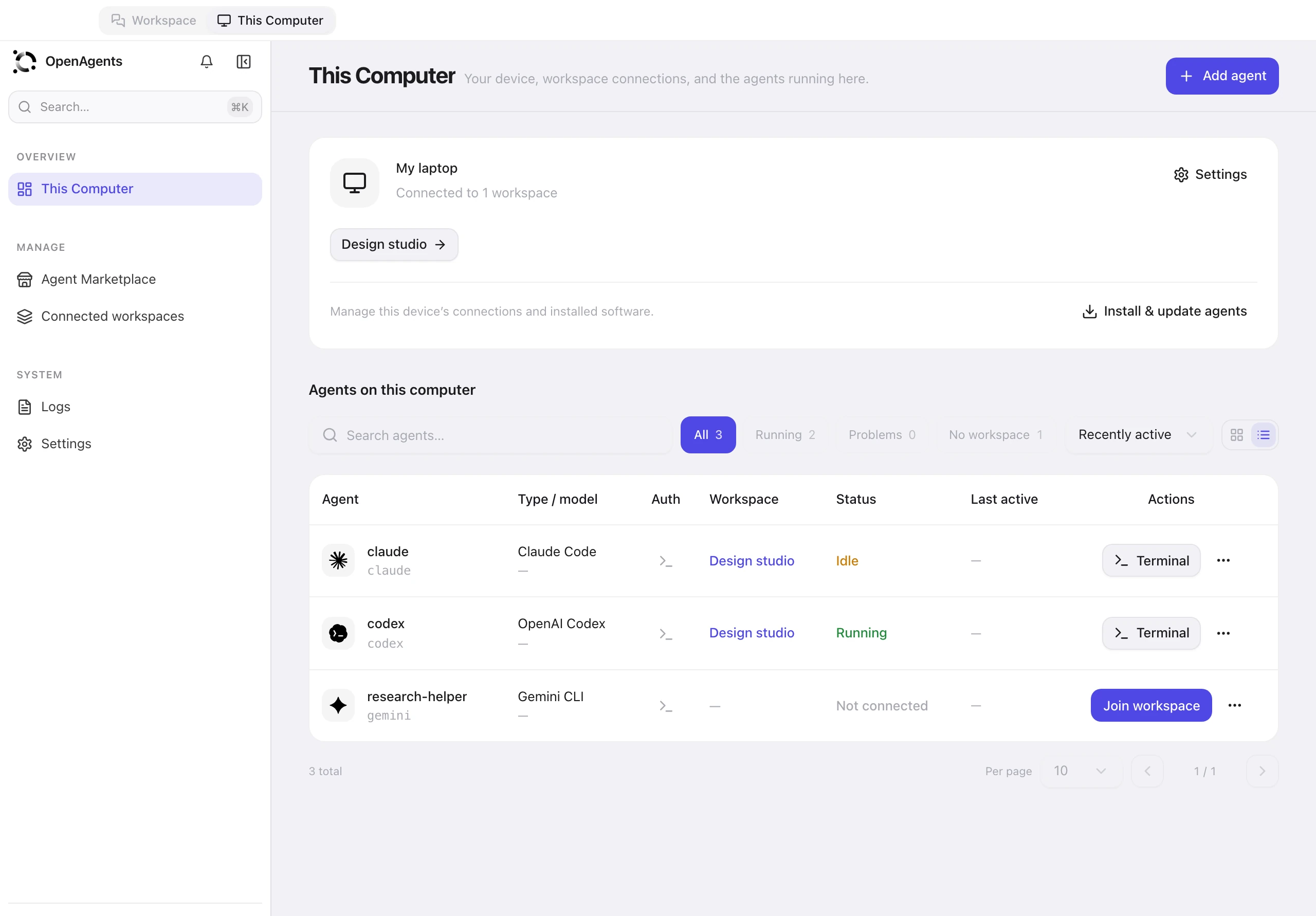
This Computer · Actual interface with sample content
Use the CLI to install, manage, and connect agents from a terminal. It’s also an option for servers without a desktop.
Run in Terminal
curl -fsSL https://openagents.org/install.sh | bashRun in Terminal
curl -fsSL https://openagents.org/install.sh | bashRun in PowerShell
irm https://openagents.org/install.ps1 | iexYes. Sign in with the same OpenAgents account to access your workspaces, conversations, and files in the desktop app or your browser.
You need an account to use a workspace. Installing and managing agents locally in This Computer does not require an OpenAgents account. An agent may still need its provider’s sign-in or API key.
No. Signing in opens your workspaces. You explicitly choose to connect this computer before a workspace can manage agents on it. You can disconnect it from This Computer.
Yes. On another Mac or Windows computer, open the desktop app, sign in to your workspace, and choose “Connect this computer”. For a server or terminal, choose “Connect remote device” in your workspace and follow the CLI pairing instructions.
Agents running on your laptop cannot respond while it is asleep or offline. Your workspace and its history remain available; agents running on other connected devices can continue working.
Open your workspace on desktop, or start in your browser.