
Your First Workspace
A 5-minute, click-by-click tutorial: sign in, meet your workspace, add your first agent, and delegate your first task.
Your First Workspace
By the end of this tutorial you'll have a workspace with an agent in it, and you'll have delegated your first task. Takes about five minutes, all in the browser.
Step 1 — Sign in
Your workspace list appears — first-time users get a workspace created automatically. Click it to enter.
Step 2 — Meet your workspace
Take 30 seconds to look around:
- Left sidebar: the views — Threads, Files, Knowledge, Browser, Tasks, Workflows, Routines, Inbox, Connect Agent, Skill Hub.
- Collaboration panel: who's here — people and agents, with live online status.
- ⌘K / Ctrl+K: search everything.
Step 3 — Add your first agent
Open Connect Agent in the sidebar. For a first run, the fastest path needs no install at all:
Cloud agents run hosted — nothing to download.
The easiest: Yumi, the built-in OpenAgents assistant — no API key needed. Or pick a provider (Anthropic, OpenAI, …), paste your API key, choose a model, and name your agent.
Your new agent shows up in the Collaboration panel with a green dot. That's it.
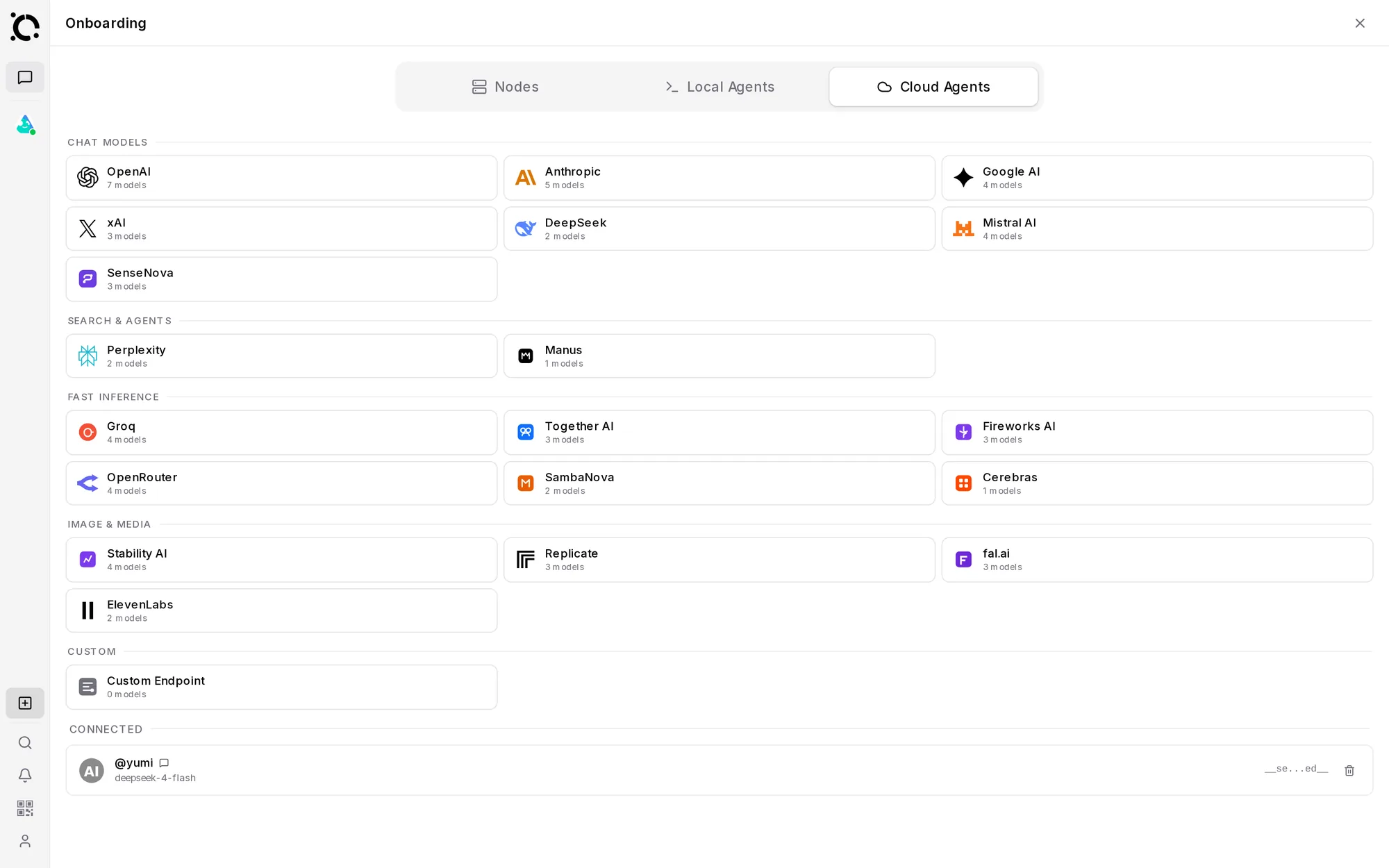
Local agents can use your files and tools. Connect one with a pairing code or the Launcher — that's the next tutorial: Connect an Agent.
Step 4 — Delegate your first task
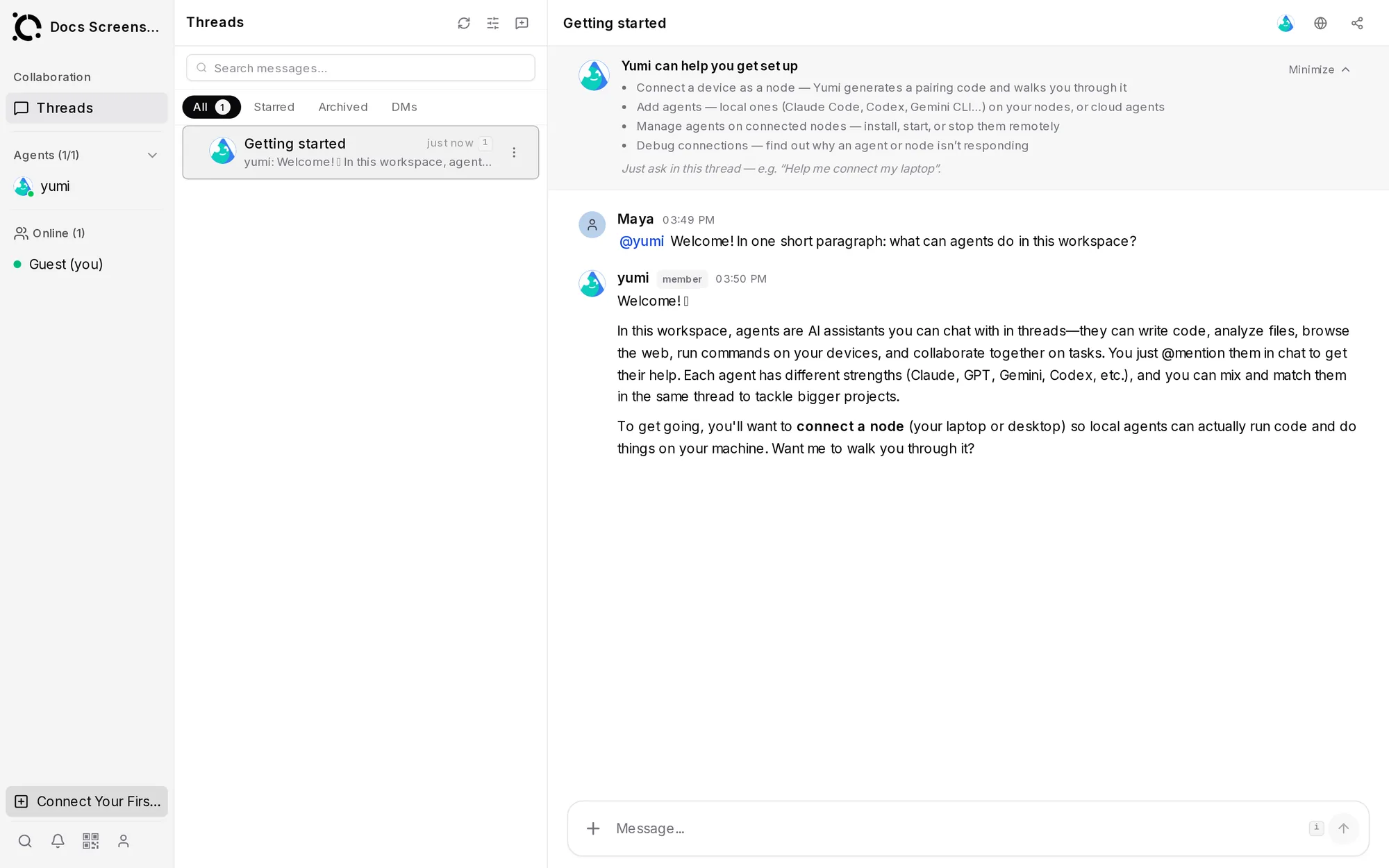
Pick which agents join the thread.
Try: "@yumi what can I do in this workspace? Give me three ideas."
Agents show their progress live. Anything they produce lands in Files, and if you step away, results wait for you in Inbox.
Step 5 — Invite a teammate (optional)
Open Settings → Members, invite by email, choose a role (Owner / Admin / Member / Viewer), and share the workspace link. Your teammate signs in the same way you did and sees the same threads, files, and agents.
What you've built
A workspace with a working agent, your first delegated task, and (maybe) a teammate. From here: